
Open Your Profile Settings
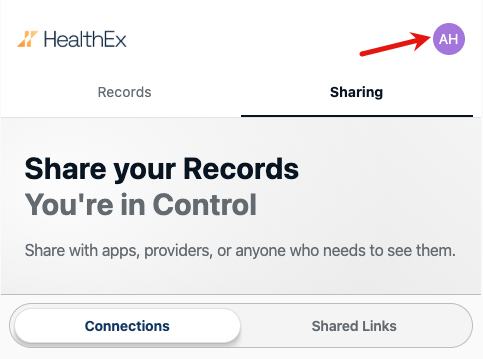
Tap your initials in the top-right corner of HealthEx.
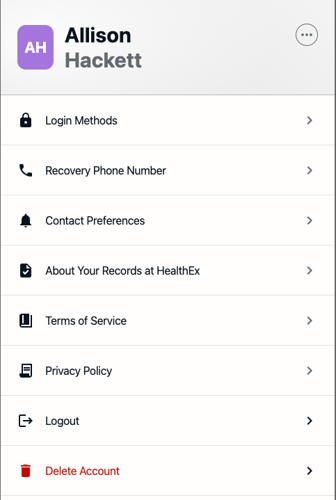
Your profile opens with these options:
- Login Methods
- Recovery Phone Number
- Contact Preferences
- About Your Records at HealthEx
- Terms of Service
- Privacy Policy
- Logout
- Delete Account
Login Methods
This screen lists the ways you can sign in to your HealthEx Wallet, such as Google, CLEAR, or ID.me. Each one shows the email it’s linked to and who manages it.
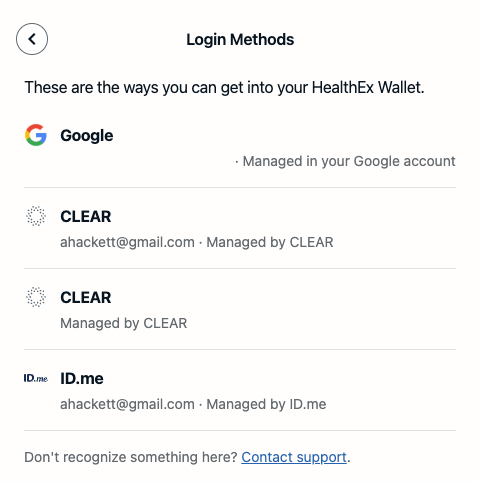
You manage these accounts with the provider (for example, your Google account), not in HealthEx. If you see a login method you don’t recognize, tap Contact support.
Recovery Phone Number
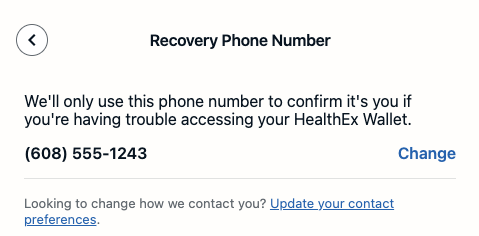
HealthEx uses this number only to confirm it’s you if you have trouble accessing your Wallet. The screen shows your current number, or No phone number on file if you haven’t added one.
To add or change your recovery number:
- Tap Recovery Phone Number in your profile, then tap Change.
- HealthEx sends a one-time code to the email address on your account. Enter the 6-digit code to continue. If it doesn’t arrive, tap Resend (you may need to wait a few seconds first).
- Enter in the one-time code. After confirming, your phone number will now be listed.
Contact Preferences
Choose how HealthEx contacts you. The screen lists your email addresses and phone numbers. Each one shows where it came from (for example, “From your Google account”) and, for phone numbers, whether it’s verified.
To choose how HealthEx contacts you:
Tap the circle next to the email address or phone number you want HealthEx to use. You can choose either Email or Text.
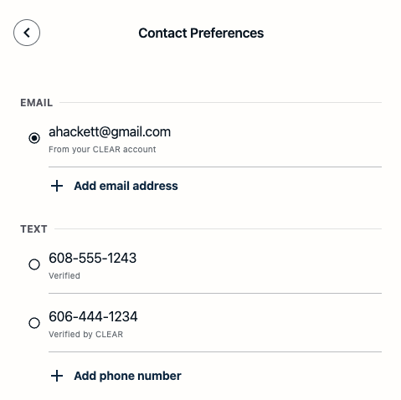
To add an email address or phone number:
- Tap Add email address or Add phone number.
- On the Add Contact Method screen, choose Email or Text at the top.
- Enter your email address or phone number, then tap Send code. HealthEx sends a verification code to confirm it. For a phone number, the code arrives by text.
- Enter the code. The newly added contact information will be automatically selected.
Tap Remove next to any email address or phone number you’ve added to delete it. You can’t remove the original email address or phone number on your account.
About Your Records at HealthEx
This screen shows what you agreed to when you gave HealthEx permission to hold your health records, and when you last agreed. A Last agreed date appears at the top, for example “Last agreed Nov 3, 2026”.
You gave HealthEx permission to find and securely hold your health records, so you can see them in one place and choose who to share them with. HealthEx doesn’t sell your data or use it for anything you haven’t agreed to. The screen links to the full Terms of Service, Privacy Policy, and TEFCA Privacy and Security Notice.
This permission is valid for 1 year from when you last agreed, or until you delete your account.
Tap View FAQs for answers to common questions, such as what HealthEx is, what health records are, who has access to them, where HealthEx gets them, how your data is protected, and how long HealthEx can access them. The FAQs also list who to contact with questions. Tap Got it to return to your profile menu.
Terms of Service & Privacy Policy
Links you to the HealthEx Terms of Service and Privacy Policy
Logout
Tap Logout to sign out of your HealthEx account. To get back in, sign in again with your usual login method, such as CLEAR, ID.me, or email.
Delete Account
Tap Delete Account to permanently delete your records from HealthEx. This can’t be undone. Data you’ve already shared with other organizations isn’t affected.
For the full steps, see Delete my HealthEx account. If you only want to stop sharing with a specific app or organization, see Sharing Your Records instead.