
Your Sharing Tab
The Sharing tab is where you control who can see your records. It has two sections:
- Connections: Apps, providers, and organizations you’ve agreed to share your records with.
- Shared Links: Links you’ve created to share records with anyone, including people outside HealthEx.
Connections
The Connections tab has three sections:
-
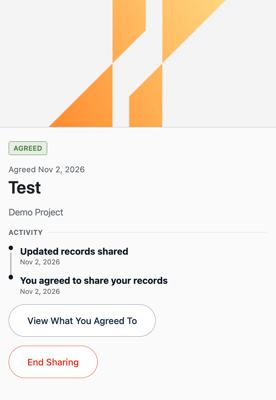
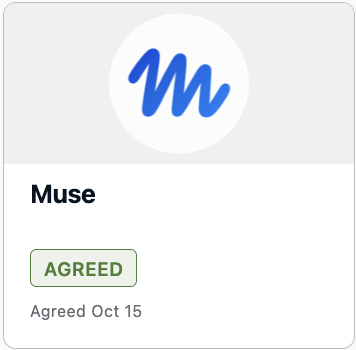
Active: The projects and apps you’ve agreed to share your records with. Each card shows its name, what it’s for, an Agreed status, and the date you agreed.
-
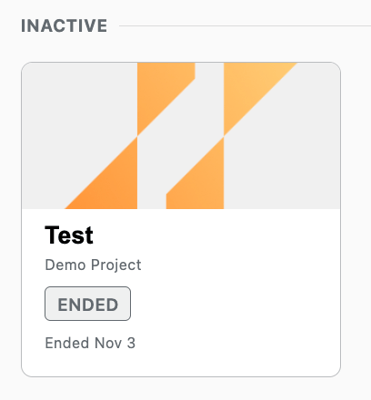
Inactive: Connections that have ended, either because you revoked them or because they ran their course. Each card shows an Ended status and the date.
-
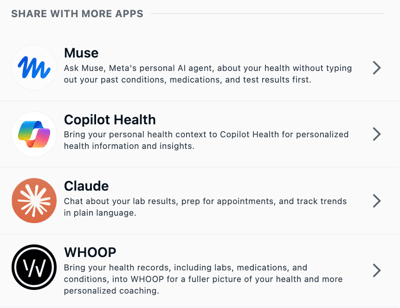
Share with more apps: A list of apps you can connect to HealthEx. Each one shows a short description of what it does with your records.
View a Connection’s Details
Tap any connection on the Connections tab to open its details. You’ll see:
- Status and date: Agreed with the date you agreed, or Ended with the date it ended.
- Name and purpose: Who the connection is with and what it’s for.
- Activity: A timeline of what has happened, such as when you agreed to share your records, when updated records were shared, and, for an inactive connection, when you ended sharing.
Active connections also have two buttons: View What You Agreed To and End Sharing. Inactive connections have Share Records.
View What You Agreed to
On an active connection, tap View What You Agreed To to see the terms of your consent:
- Organization: Who your records are being shared with.
- Consent duration: How long the connection lasts, for example 1 year.
- Request title: The name of the request.
- Purpose of request: Why they’re asking for your records, for example care coordination.
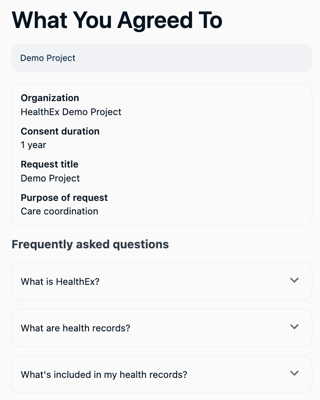
Below the terms you’ll find answers to common questions, such as what HealthEx is, who will have access to your records, whether you have to share, and how your data is protected.
End Sharing
- Open Sharing, tap Connections, and tap the connection under Active.
- Tap End Sharing. Applies only to the connection you ended. Your other connections stay active. Your health data will no longer be shared with that connection immediately after.
- In the confirmation, tap End Sharing again to confirm, or Cancel to keep sharing.
Once you confirm, the connection stops receiving your records for that request and moves to Inactive. A “Sharing Ended” message confirms this, and the Activity timeline records that you ended sharing.
What ending sharing does and doesn’t do:
- It doesn’t remove records the connection has already received.
- It doesn’t affect your HealthEx Wallet. Your health history stays in your Wallet, and you can share it again whenever you choose.
- It applies to that request only.
Share with More Apps
The Share with more apps section lists apps and services you can connect to your HealthEx records. Each one shows a short description of what it does with your records.
To connect an app:
- Scroll to Share with more apps on the Connections tab.
- Tap the app you want to connect.
- Follow the app’s steps to finish connecting your records.
Once you’ve connected, the app appears under Active on your Connections tab.
Shared links
Share links let you send your records to someone outside HealthEx, such as a new doctor’s office, without connecting an app. You choose what the link includes and how long it works.
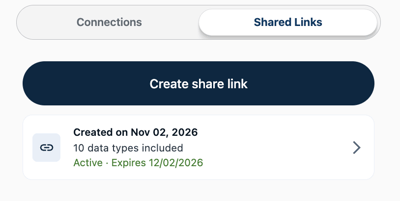
Create a share link
- Open Sharing and tap Shared Links.
- Tap Create share link.
- Under Link name, keep the default (the date you created it) or enter your own. Only you can see this name.
- Under Link expires, choose how long the link works:
- One-time use: Best for sharing at a single appointment.
- 30-day access: Best for ongoing access.
- Under What to include, choose:
- All health records: Everything available on file.
- Selected data types: Choose what to share (see below).
- Tap Create share link.
After you create the link, its details screen shows a QR code and a Copy link button. Tap Copy link to send it, or have the person scan the QR code. Both open the same link.
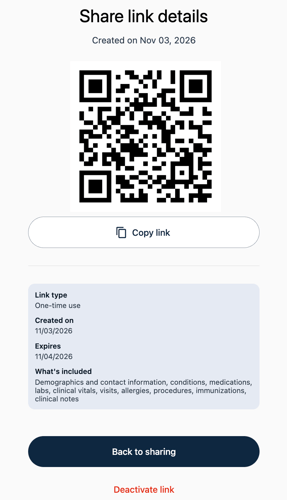
Your link is a SMART Health Link, a standard format that compatible health systems can open. Anyone who has the link can view the records you chose until it expires or you deactivate it, so share it only with people you trust.