---
title: Connect HealthEx to Claude
description: Learn how to connect the HealthEx connector to Claude to access your personal health records for personalized health conversations.
---
[Skip to content](https://support.healthex.io/kb/connect-healthex-to-claude#main-content)
English - United States
Show submenu for translations
[](https://www.healthex.io/)
Open main navigation
Close main navigation
- English - United States
Show submenu for translations
- [Create a Ticket](https://healthex.io/support)
[Create a Ticket](https://healthex.io/support)
How can we help you?
- There are no suggestions because the search field is empty.
1. [HealthEx Support](https://support.healthex.io/kb?hsLang=en-us)
2. [Integrations](https://support.healthex.io/kb/integrations?hsLang=en-us)
# Connect HealthEx to Claude
## Link your personal health records to Claude for personalized health conversations and insights.
**Before you begin**
Make sure you have:
- A Claude Pro or Max account
- A government-issued ID (driving licence or passport) for identity verification (required for auto record location)
- A mobile phone for selfie verification via CLEAR (required for auto record location)
---
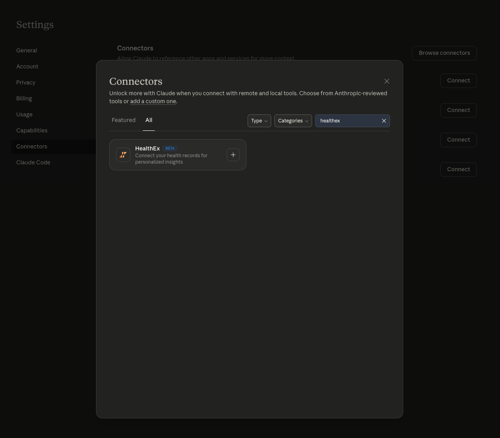
**Step 1 — Open Claude Settings and search for HealthEx**
- Open Claude and click your profile icon to open **Settings**
- Click **Connectors** in the left sidebar
- Click **Browse connectors**
- Search for "healthex" and click the **+** button on the HealthEx BETA card
* *
---
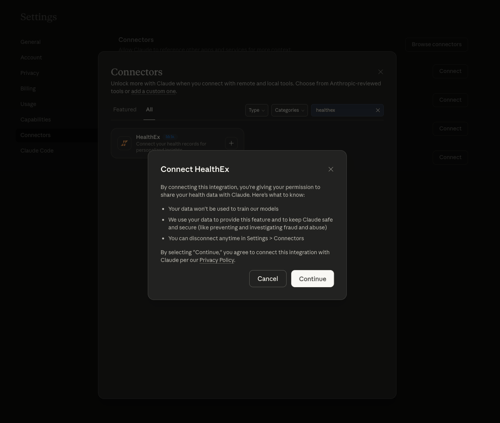
**Step 2 — Review permissions and click Continue**
- A "Connect HealthEx" dialog will appear
- Review the key points: your data won't be used to train models; you can disconnect anytime via Settings → Connectors
- Click **Continue**
* *
---
**Step 3 — Get started on the HealthEx connection page**
- Click **Get started**
* 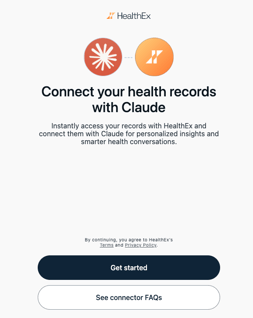*
- You will be taken to the HealthEx connection page and prompted to sign in
- Choose how you'd like to continue:
- **Continue with Google** — sign in with your Google account
- **Continue with Microsoft** — sign in with your Microsoft account
- **Continue with CLEAR** — use CLEAR to verify your identity and automatically locate your health records
- **If you chose Google or Microsoft →** you will be signed in and taken to the provider selection screen where you can manually add providers. Skip to Step 9.
- **If you chose CLEAR →** continue with Steps 4–8 for identity verification and automatic record location.
---
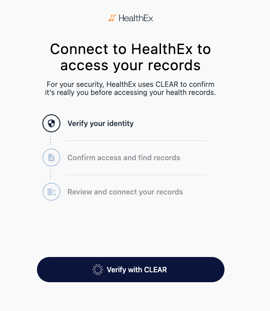
**Step 4 — Verify your identity with CLEAR**
- HealthEx uses CLEAR to confirm your identity before granting access to your health records
- You will see a 3-step progress flow: Verify your identity → Confirm access and find records → Review and connect your records
- Click **Verify with CLEAR**
* *
---
**Step 5 — Accept CLEAR's verification terms**
- A CLEAR consent dialog will appear listing information they will collect
- Have your mobile phone ready for a selfie photo
- Click **Accept & Continue**
---
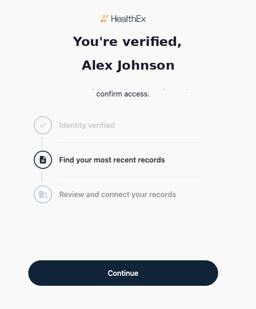
**Step 6 — Identity verified — continue to find records**
- Once verified you will see "You're verified!"
- Click **Continue**
* *
---
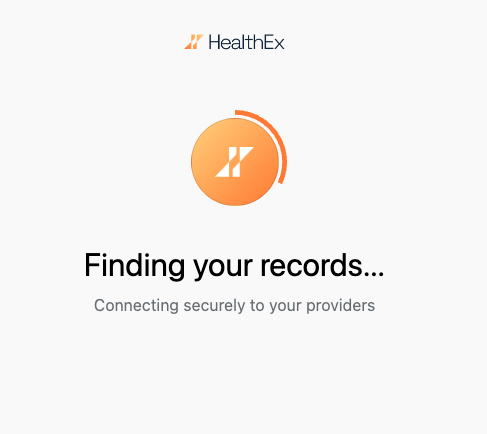
**Step 7 — HealthEx locates your records**
- HealthEx will securely connect to your health providers in the background
- This may take a few seconds — do not close the window
* *
---
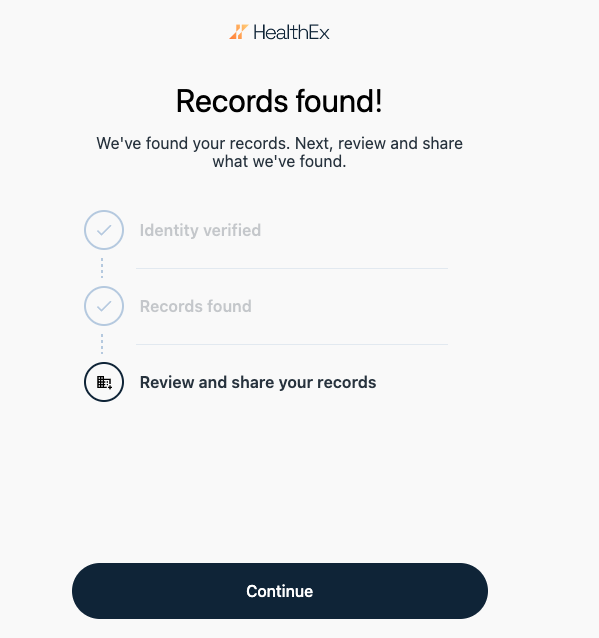
**Step 8 — Records found — review and share**
- You will see a "Records found!" confirmation screen
- Click **Continue** to review which records will be shared
* *
---
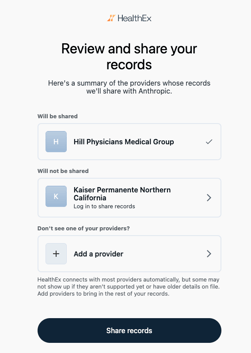
**Step 9 — Review providers and share your records**
- You will see providers split into two sections:
- **Will be shared** — providers HealthEx has access to
- **Will not be shared** — providers requiring additional login
- Click **Add a provider** if yours is not listed
- Click **Share records** to complete the connection
* *
---
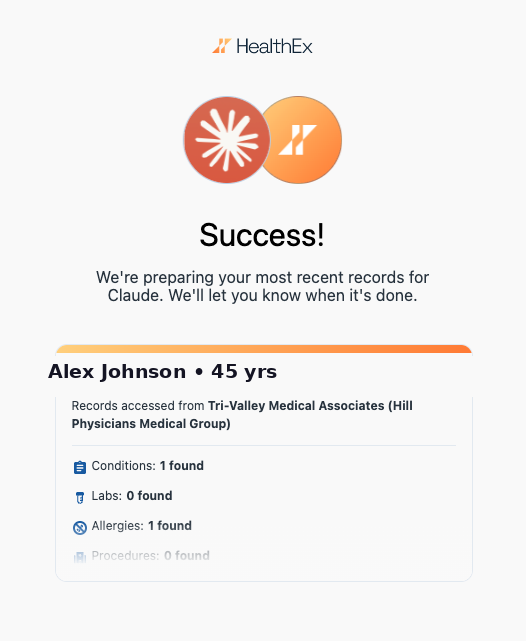
**Step 10 — Connection successful!**
- A "Success!" screen confirms your health records are now connected to Claude
- You will see a summary of records found including Conditions, Labs, Allergies, and Procedures
- Return to Claude and try asking: "What conditions are in my health records?"
* *
---
**What data does the connector access?**
| Data Category | Description |
| --- | --- |
| Conditions | Active and historical diagnoses |
| Medications | Current prescriptions and dosage details |
| Lab Results | Blood work, urinalysis, and pathology reports |
| Vitals | Blood pressure, weight, heart rate, BMI |
| Immunizations | Vaccination history and dates |
| Allergies | Known allergies and intolerances |
| Procedures | Surgeries, imaging, and diagnostic procedures |
| Clinical Visits | Visit history, providers, and chief complaints |
Note: HealthEx provides read-only access. Claude cannot modify, delete, or add to your health records.
---
**Disconnecting the connector**
1. Open Claude **Settings → Connectors**
2. Find the HealthEx connector
3. Select **Disconnect** on the top right corner
4. Confirm when prompted
Note: Disconnecting removes Claude’s access to your health data immediately. Your records remain safely stored within HealthEx.
- [FAQs](https://support.healthex.io/kb/faqs?hsLang=en-us)
- [Getting started](https://support.healthex.io/kb/getting-started?hsLang=en-us)
- [How-to guides](https://support.healthex.io/kb/how-to-guides?hsLang=en-us)
- [Integrations](https://support.healthex.io/kb/integrations?hsLang=en-us)
Copyright © 2026, HealthEx